Documents
Keep your PDFs in folders and link them to the people, projects, notes and tasks they belong to.
On this page
Docs holds your PDFs: bills, contracts, letters, scans. Browse them in columns, as in the Finder, and link each to whatever it's about. Press G then D to get to Docs.
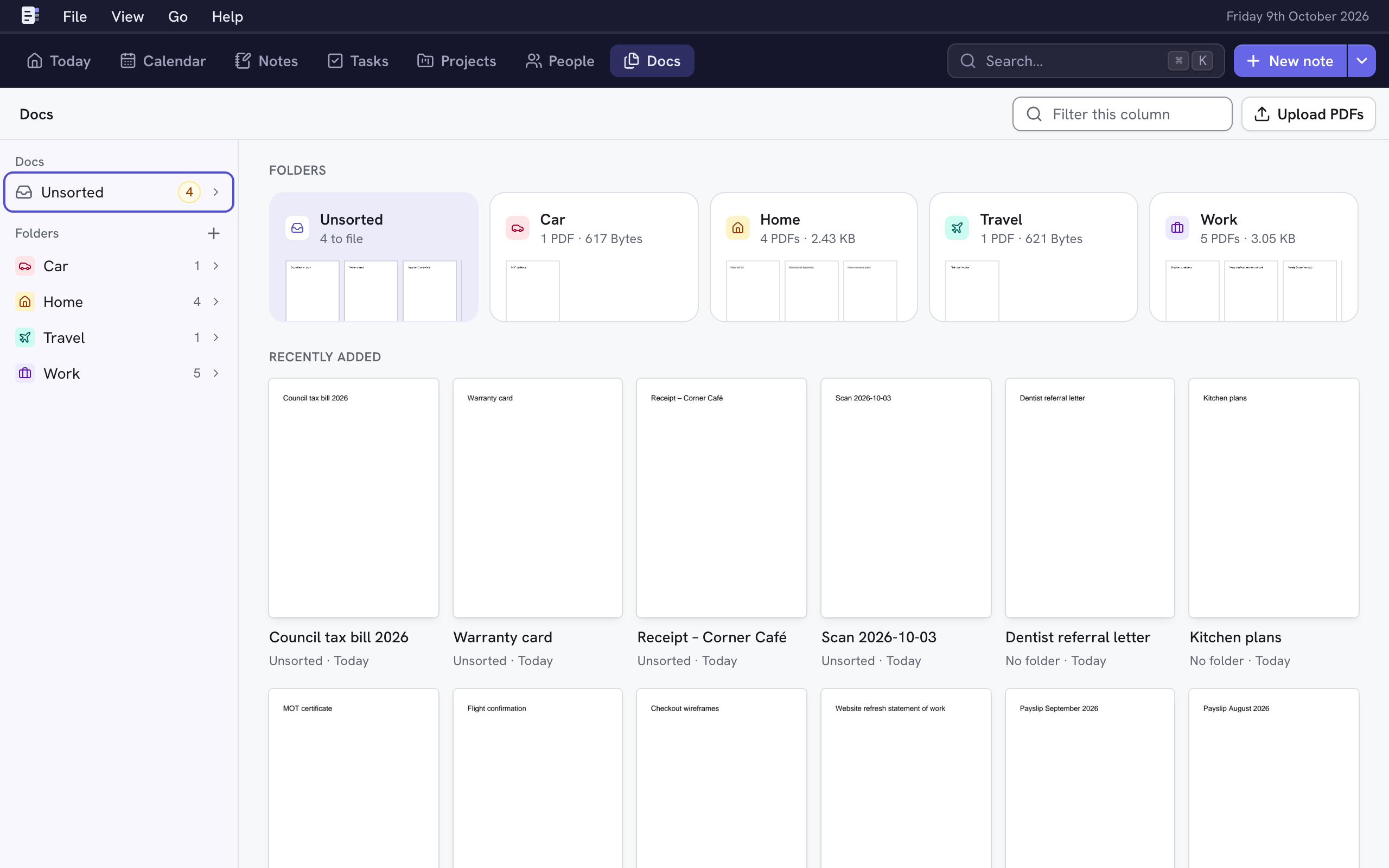
Upload PDFs
- Choose Upload PDFs (⇧U, anywhere) and pick the files, or
- Drag PDFs onto Docs: drop them on a folder, a column or a crumb in the path at the top to put them there.
New PDFs with no folder go to Unsorted. Each one can be up to 50 MB. You can keep working while they upload.
Drop PDFs anywhere on a person's or project's page, or on a note as you write it, to upload and link them in one go. A new note needs some words first.
Browse
Docs opens on an overview: your folders, then what you added most recently. Select Unsorted or a folder in the column on the left, and each folder you open adds a column to its right, with the selection's preview at the end.
- ↑ and ↓ select; → goes into a folder and ← back out.
- Filter this column (F) narrows the active column by name.
- Drag a column's right edge to widen it.
On a phone you see one column at a time; the back arrow or the path at the top takes you up.
Sort Unsorted
Unsorted holds PDFs with no folder and no links. Select one, then:
- Move (M) to put it in a folder, or
- Link (L) to link it to a person, project, note or task.
It leaves Unsorted when you next open it.
View a document
Select a document and choose View (Space). The viewer shows the PDF with its name, and:
| Choose | Key | Does |
|---|---|---|
| The arrows | ← → | The previous or next document in its folder. |
| Move | M | Moves it to another folder. |
| Link | L | Links it to things. |
| Download | ⌘S | Downloads the PDF. |
| ⋯ → Rename… | E | Renames it. You can also choose its name. |
| ⋯ → Delete… | Deletes it. |
Space or Esc closes it.
A linked document anywhere else (a person's, project's or note's documents, a task, a project's activity) opens in the same viewer over the page you're on. Esc or Back returns you there.
Folders
- New folder (N): give it a Name, choose where it goes (In), a Colour and an Icon. Folders can hold folders.
- Select a folder to see Upload here, New folder, Edit (E), Move (M) and Delete. Only an empty folder can be deleted.
Move documents
Choose Move (M), then pick a folder or type part of its path ("pay 26" finds Payslips › 2026), and press ↵. No folder takes it out of its folder. New folder… makes one and moves it there.
You can also drag a document onto a folder, a column or a crumb. Every move can be undone for 20 seconds (U).
Link documents
Linking shows a document on the page of each thing it's linked to. It doesn't move it.
- Choose Link (L).
- Type to find a person, project, note or task. Choose one to link it, or a ticked one to unlink it. Each saves at once.
- Choose Done (⌘↵).
From a person's or project's Documents tab, Link existing… finds a document to link there, and Upload PDFs adds new ones, already linked. A note's PDFs are in its details, under Add documents; a task's are in the task.
Work on several at once
Select several documents with ⌘-click, ⇧-click or ⌘A, then choose Move, Link or Delete in the preview. Esc goes back to one.
Delete a document
Select it and press ⌫, or choose ⋯ → Delete…. Anything it's linked to stays. You can undo for 20 seconds (U).
Thumbnails
Nifty makes a picture of each PDF's first page for the overview, folder tiles and preview. A new upload shows a plain page for a moment until its picture is ready.