People
Everyone you know, with what you want to remember about them.
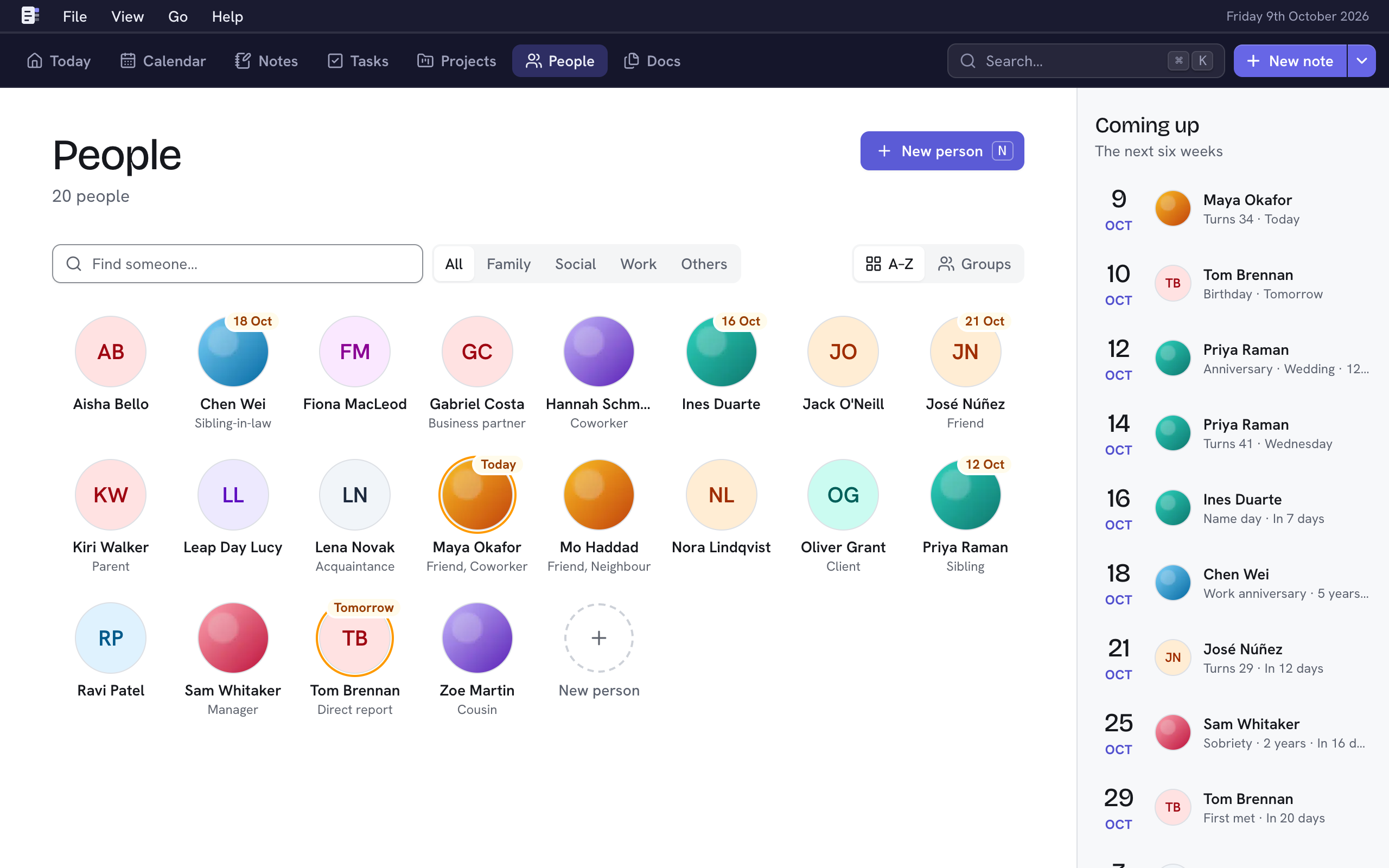
People shows everyone as a face. Open someone to see their notes, tasks, documents and connections, with their details beside them. Press G then P from anywhere to get here.
Add a person
- Choose New person (N, or ⇧P from anywhere).
- Type their name.
- Choose Add person (⌘↵).
Their page opens, ready for more. You can also add someone while mentioning them in a note or connecting them to someone else.
Find someone
- Type in Find someone… (F). It matches names and how they relate to you. ↵ opens the first match; Esc clears it.
- Choose Family, Social, Work or Others to see one group, or All for everyone.
- A–Z lists everyone by name; Groups puts them under each group.
A face with a date on it has a key date in the next two weeks. Coming up, beside the faces, lists the next six weeks; on a phone, the next two weeks sit above them.
A person's page

The tabs hold what's linked to them:
- Notes: notes that mention them. Add a note about… (N) starts one.
- Tasks: their tasks. ⇧T adds one.
- Documents: documents linked to them. Upload PDFs or Link existing… adds more; so does dropping PDFs anywhere on their page. A document opens over the page; Esc brings you back. See Documents.
- Connections: the people they know. See Connections.
- Upcoming meetings: meetings from your calendars they're invited to, for the next 60 days.
The details on the right each have a + or a pencil, and a key:
| Section | Key | Holds |
|---|---|---|
| Relationship to you | Y | What they are to you: friend, sibling, manager… This sets their group on People. |
| Work | O | Job titles and companies. See Work. |
| Key dates | D | Birthdays, anniversaries and more. See Key dates. |
| Details | A | Email addresses, phone numbers and links. Choose one to change or remove it. |
| Projects | The projects they're part of. |
Change or delete a person
- Edit person (E) changes their name and photo.
- The bin icon beside it, Delete person, deletes them with their key dates, details, connections and tasks. Notes stay; mentions of them become plain text. You can undo for 20 seconds.